Tuesday, October 22, 2013

3 Top New jQuery Page Flip Book Effect Examples & Demos in First Half Of 2013

At present the most popular flipping books are jQuery based or HTML based. In the past months of 2013, there are different jQuery page flipbook makers have been developed and publicized. From most jQuery based page flip book makers, the Flip Html5-Html5 Publishing Software fFree Download has earned enough notices from users all over the world.
Next is one example from Flip Html5, you can try the page flipping effect in the vivid embedded demo.
With serious and careful observation, there are other four new and outstanding jQuery Page Flip book makers.
Hi Slider:
The Hi Slider is totally different from Flip Html5 (You can find more info on Flip Html5 Home Page). Hi Slider is a pure flipping album maker that is only for combining dozens of Image files.
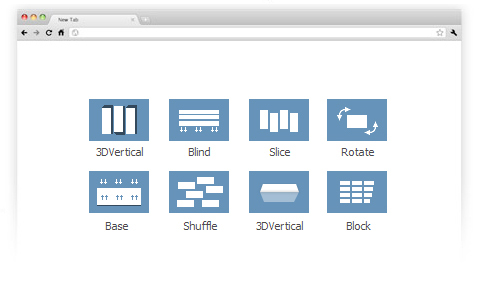
And flipping albums from Hi Slider are mainly show you the slide page effects. In Hi Slider, there are 3D turning effects and simple turning effects which will satisfy most demands of users. The most important thing is Hi Slider is free for users.


Boxoft PDF to Flipbook Professional is a flipping book converter from PDF files. In this software there are colorful live wallpaper and animated backgrounds and scrolling text synchronizes with recording audio. The unique Audio in Boxoft PDF to Flipbook Professional has improved its popularity for the much more vivid page turning effect.

If for Html conversion of flipping books, Flip Html5 would be the preferred choice!

Wednesday, September 18, 2013

Best of Joomla - Images Slideshow Module


Introduction of Joomla:
Joomla is a famous Content Management System in Western countries; Joomla is a software system that adopts PHP language and MySQL database, and it can be run on different platforms as Linux, Windows and MacOSX, etc.
At present, the Joomla is developed and supported by an organization called Open Source Matters which contains almost 150 members all around world and includes more than 20,000 participant members of developers, designers, system managers and editors.
Actually there are two open source things in Joomla. One is the JoomlaCMS which is the basic manage platform of the website that nearly suit for no matter personal or department store sales for online services. Another one is the Joomla Platform which theoretically is capable for doing anything for users, except the website, it can be used for widely web development or mobile phone app development, etc.


It is because of the usefulness of Joomla, Joomla tools also become a necessary filed in software development. The Hi Slider Free Joomla Slideshow Module has noticed that in time, it supplies Joomla users a fully customized and flexible Joomla Slideshow Module maker.


Hi Slider Free Joomla Slideshow Module
The Hi Slider is a CSS based jQuery Slider maker with different features I the software for users to individualize the slider. Image, YouTube and Vimeo supported as the original files, self-designed appearance and multiple output formats.


1. Different Choices in Templates and Skins:
There are different templates and skins for you to choose to decorate your jQuery Joomla Module. The templates are: Classic, Dotted, Elastic, Eris Horizontal, Fly, Full, List, Slidorion, Versatile and Wonder. And different skins exist in each template.


2. Separately Set Transition Effects:
Compared with the other similar software, the Hi Slider Free Joomla Slideshow Module has a comparative advantage, the mixed using of different transition effects in one Joomla Slideshow Module. In Hi Slider, each slider of the Joomla Slideshow Module is regarded as independent item that can be separately choose different and customize transition effect.


3. Different Uses of jQuery Slideshow Module of Hi Slider:

The Different uses of Hi Slider Free Joomla Slideshow Module are presents mainly in the abundant outputting formats. All JQuery sliders with YouTube and Vimeo can be output as Joomla Module, Drupal Module, HTML5 basic version and the WordPress plug-in.

4. Other Features
Change a logo to the Joomla Slideshow Module;
Support various browsers for previewing;
Customized buttons for Joomla Slideshow Module. 
More information on HiSlider.com


Monday, January 16, 2012

print specified page only of flipping magazine

Learn more: www.flippdf.com


There is a flash catalog that I’m working on, and I know the printing feature is great but, can I print an area only? I mean the specified page or only an area.

Here are the steps to follow:
Step1: click “Edit Pages”  button to open the editing interface.
Step2: click “Add printable area” button and draw the area that you want it to printable.
Step3: save and exit, the printable area will appear while mouse over.

Free download Flip PDF

Free download Flip PDF Professional

Free download Flip PDF for Android

Free download Flip PDF for Mac OS X (Lion)

Free download Flip PDF Professional for Mac OS X

add images to flipbook page

Learn more: www.flippdf.com


I want to put some additional graphics to my flipping pamphlet, but I found that I don’t know how. Is there such a feature to let me do so?

There is no doubt that you can add as many pictures as you want to the flippingbook.

Step1: hit “Edit Pages”  button to open the editing interface.
Step2: click “add image” button and draw an area on the page for the image.
Step3: click “Select an Image” button to choose image files from your computer.

Remember to save before you exit the interface, and you can see the picture you’ve selected was embedded to the page.

Free download Flip PDF

Free download Flip PDF Professional

Free download Flip PDF for Android

Free download Flip PDF for Mac OS X (Lion)

Free download Flip PDF Professional for Mac OS X

Add links to flippingbook

Learn more: www.flippdf.com


There are links in the original PDF file, and after I import it to flip book, I found that some more links needed. I guess I have to add them in the PDF file and import it again, I’m really reluctant to do, are there any ways that I can add links directly when editing the flipbook?
Yes, adding links to flippingbook when editing is a convenient feature of Flip PDF.

Step1: click “Edit pages” button to open the page editing window.


Step2: click “Add Link” button, draw an area for the link. And then move your sight to the right little window, click the “Action Options” button there, enter the link URL in the blank in the setting dialog box.

Save and exit when settings done, you can see the link is added.


Free download Flip PDF

Free download Flip PDF Professional

Free download Flip PDF for Android

Free download Flip PDF for Mac OS X (Lion)

Free download Flip PDF Professional for Mac OS X

add links to watermark

Get more: www.flashbookmaker.com


I’m working on my photography albums and am running a site about photography. By that means I need to create some demo albums to promote my site. My thought is to convert them to flash flipping albums with watermarks and add my website link to guide readers to. It would be good if I can add links directly to the watermarks. Is that possible and how to do?
That’s quite easy to do.

Step1: click “Set Watermark” button under “Add File” tab to open the watermark setting window.

Step2: choose “text/image/shape” type of watermarks which links are available.

Step3: switch to “Link” tab and check “apply link-> input a web link URL”, and then input your website address in the blank.
*Please be aware that you have to click “Apply Changes” to apply any changes to the flash book.

slide show photos in your flash book

Get more: www.flashbookmaker.com


Here are some questions I want to ask. I’m working on a flash periodical and of course, I have some photos to put in it. And as it’s a flash magazine, I suppose that there should be something different from traditional publications. I’m wondering if there a method that allows me to show as much photos as I can in the smallest space, so that I can save some spaces for other contents.
There is a way to achieve this, not only saving spaces, but also reflects the superiority of flash format publications. You can embed an album in it so that you can show as many as photos you want without worrying about space.

First you have to add a photo as the album cover, click “Edit Pages” button for process, this will open an edit window. This step is the same with adding images to flipping PDFs, check here to learn more.

And secondly, move sight to the right config window, click “Action Options” button, and then check the “Photo Slideshow” option in the popup window.
This will open a photo information window; click “Add Images” to choose image files from your computer.

Click OK after then and save to exit the page editing window; you can click on the album cover to confirm. Use left and right control button to slide photos.


*Please be aware that you have to click “Apply Changes” to apply any changes to the flash book.